About Tasks
The Tasks feature gives you an overview of tasks, deadlines, and responsible persons ensuring that nothing is overlooked. You can read more about the Annual Wheel Cycle of Work here
You can find the task overview under:
Maintain & Control > Tasks
Types of Tasks
One-time tasks
One-time tasks are tasks that only need to be completed once and are not automatically repeated. They have a fixed deadline and disappear from the task overview once they are completed. The history of completed one-time tasks is always available in the Activity Log, and they can also be found under Archive.
Recurring tasks
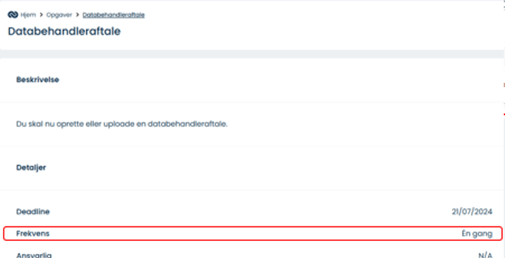
Recurring tasks are displayed as a single, ongoing task that can be reused each time it needs to be carried out. When and by whom the task was completed can be seen in the Activity Log. To see the frequency of your tasks, click on a specific task and go to Frequency.
Note:
-
You can change the frequency of tasks you have created yourself.
-
Some tasks cannot be edited if they are assigned by ComplyCloud as one-time tasks.
Tasks related to documentation
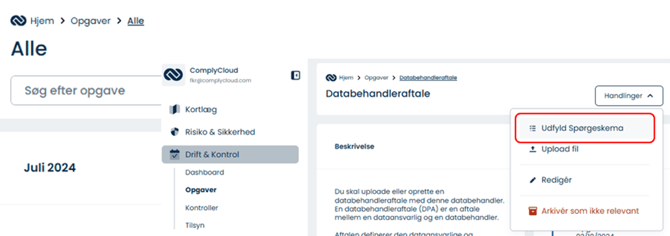
Some tasks require the creation of documents through a questionnaire, where you answer questions to provide the necessary information.
Once the questionnaire is completed, the document is automatically generated. You can read more about documents
here
Creating Tasks
To create a new task:
-
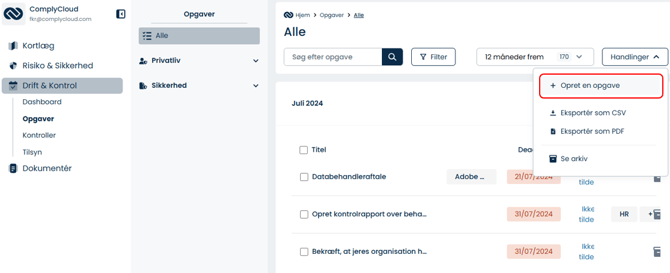
Go to Actions > Create task
-
Fill in at least the following fields:
-
Title
-
Description
-
Deadline
-
-
Click Save
Tip:
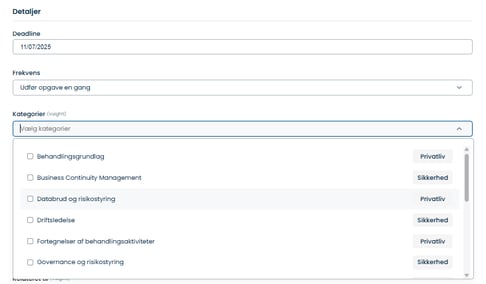
When creating your own tasks, you can assign them to a specific category.
Adding a category ensures that the task appears under the correct section in the Dashboard and is displayed in the Annual Cycle of Work.
Completing a Task
To maintain a full overview of your organization’s compliance level, it’s important that employees mark tasks as completed. This is done by clicking:
-
A task from the overview
-
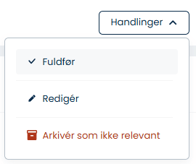
Actions > Complete / Approve
Tip: You can assign approvers to specific tasks by:
-
Clicking the task
-
Selecting Approve
-
Choosing an approver and clicking Save changes
For tasks related to document creation, you can complete the task by either:
-
Opening and filling out the linked questionnaire, or
-
Uploading your own document.
Editing Tasks
You can edit tasks to change deadlines or content.
-
Go to the specific task
-
Click Actions > Edit
Note: It’s not possible to change deadlines for overdue tasks.
Filtering Your Tasks
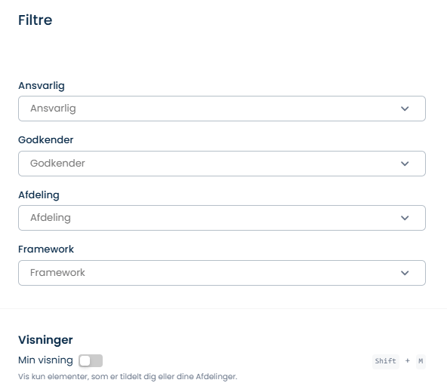
You can easily filter tasks by going to: Tasks > Filters
Tips:
-
Use My View in the filter menu to quickly see tasks assigned to you.
-
You can only filter by frameworks if at least one framework is activated.
Aktivitetslog
Du kan finde en aktivitetslog for hver opgave, hvor du bl.a. kan se, hvornår gentagne opgaver er blevet afsluttet. Du kan læse mere om aktivitetslogen under artiklen GDPR: Årshjulet.
Arkiv
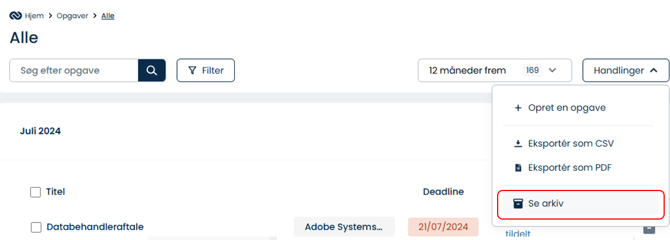
Arkivet viser afsluttede opgaver og opgaver, der er markeret som ikke relevante for virksomheden. For at se arkivet få til
- Opgaver
- Handlinger
- Se Arkiv
Approval Flows og uddelegering
Du kan uddelegere opgaver til medarbejdere eller teams:
- Opgaver
- Klik på en specifik opgave
- Redigér
- Ansvarlig/Godkender/Afdelinger
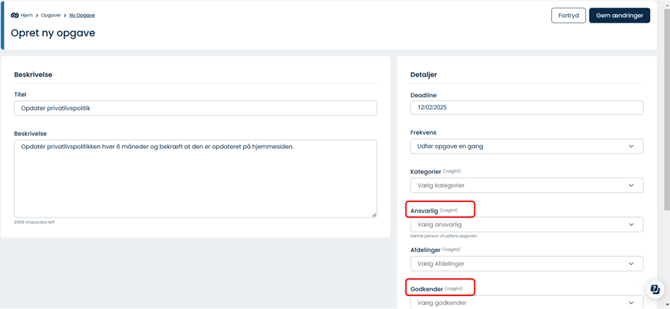
Bemærk: Opgaveansvarlige og godkendere kan modtage e-mail notifikationer omkring deres tildelte opgaver ved at slå det til under:
- Indstillinger
- Brugere
- E-mail notifikationer: “Når Opgaver, du er involveret i, bliver opdateret”